

Step by Step for the My eduCONNECT app
Welcome to the Meu eduConnect Totvs app tutorial!
This tutorial was created to present the features of the new Meu eduConnect app, which is an application that connects the entire academic community of the institution effectively, safely and quickly, offering several options and functions of the academic system.


1
Accessing the My eduConnect App
1.1
How to access
Download the Meu eduConnect app from your mobile phone's app store.


1.2
First Access
To access and configure for the first time, click on the QR Code icon, as shown in the figure below.

When prompted, point your camera at the QR Code below.

After reading the QR Code, the message for notification permission will be displayed and then the screen with the configuration information for CoreeApp.

1.3
Login
After reading the QR Code and configuring it, you must fill in the username and password fields and click Connect.
Note: The access information is the same as the Portal
Student.
The username is your CPF. The initial password was sent via Whatsapp to parents/guardians through CE (External Communication) and must be changed upon first access.

To navigate the Meu eduConnect app's features, simply scroll to the right on the bottom bar. The available menus are:
Notification
Messages
Academic
Payment
Profile
2
Introducing the menus


2.1
Notifications
This menu will display notifications regarding important information of interest to the academic community and messages directed to students.

2.2
Academic
Through the Academic menu, the user will have access to the options below:
Agenda;
Classes;
Notices;
Reviews;
Disciplines;
Financial;
Schedules;
Grades/Absences;
Occurrences;
Requests;
Reports; and
Institutional Materials
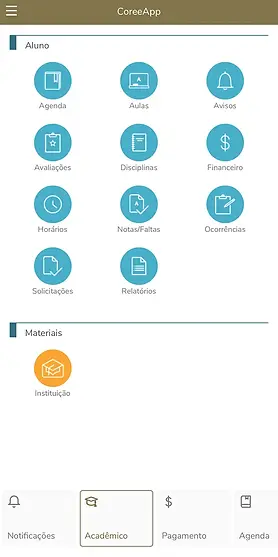
The user can switch between registered students using the gear in the top right corner or when requested.

2.2.1
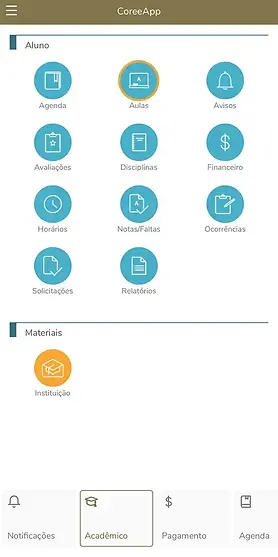
Classes
In the Classes menu, when selecting the subject and class, you can
follow the lesson plan (planned and implemented content) prepared
by the teacher.


2.2.2
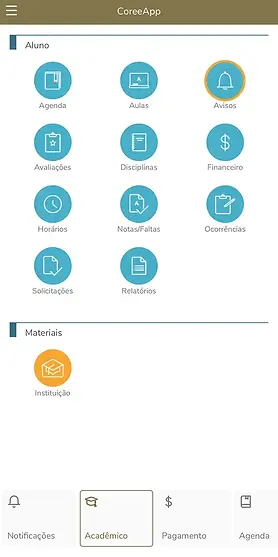
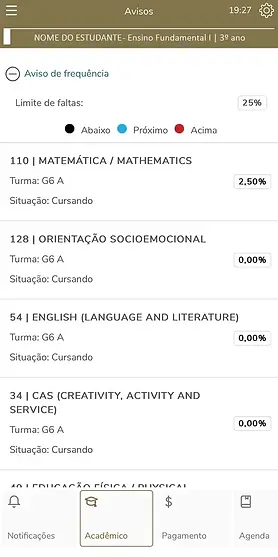
Notices
In the Notices menu, you can check attendance notices.
2.2.3
Reviews
In Assessments, when selecting the subject, you can check the grades for the assessments during the academic period.


2.2.4
Disciplines
In the Subjects menu, when selecting the subject, you can see the status of the subject in the academic period.


2.2.5
Financial
In the Financial menu, you can monitor the status of payments made, which can be filtered by Open, Paid and All.


2.2.6
Schedules
In this menu you can view the timetable for the school term.


2.2.7
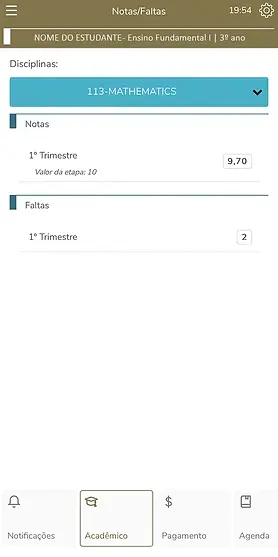
Grades/Absences
In this menu, when selecting the subject, you can check the grades and absences for the subjects during the academic period.


2.2.8
Occurrences
In the Occurrences icon, you can view the student's academic and financial occurrences.

2.2.9
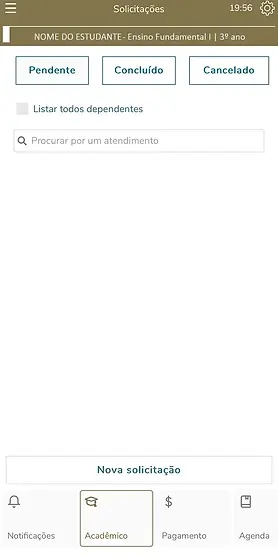
Requests
In this menu, you can make requests to Coree's customer service departments, which will be handled and resolved online. Requests can be filtered by pending, completed and cancelled.


2.2.10
Reports
Here you can see the reports (documents) made available by Coree, for issue via the portal.

2.3
Payment
In the Payment menu, we find the amounts generated for the student, and it is possible to filter by Overdue, Due and Paid bills. Bills for payments for the current month can be generated by the Student Portal / Totvs. In the application, the user can access the machine-readable line of the current month's bill.

2.4
Profile
In the Profile menu, you can change your password, terms and privacy, and log out of the app.
